
Tutorials
Redeem your customer’s reward
With a full card, the customer claims their reward, you confirm the redemption, and the card starts over.
This tutorial walks the happy ending of the loyalty card: the customer collects their last stamp and the card completes, the reward turns ready, the customer shows their code to redeem, you scan it and confirm the canje (redemption), and the card starts a fresh cycle to keep collecting stamps.
Before you start
Three things worth knowing:
The reward only unlocks on a complete card
Every stamp moves the customer closer to the reward, but redeeming is enabled only once they collect every stamp. You recognize that moment by the color of the celebration:
- An ordinary stamp lands with color confetti.
- The stamp that completes the card lands with golden confetti: the signal that the reward is now ready to redeem.
There are two ways to redeem
Both end the same way —you confirm the canje from your phone— but they start differently:
- The customer taps "Canjear recompensa" (redeem reward), a code appears on their screen, and you scan it.
- Or you open the customer’s record and redeem from there, with no scanning.
What happens to the card after redeeming
On a confirmed canje, the card does one of two things, set by the "Renovación automática" (auto-renew) option you chose when designing the card:
- With auto-renew on, the card starts a new cycle from zero and the customer collects again. This is what most shops use.
- With auto-renew off, the card stays closed once the reward is given.
- You can change this option any time from your business settings.
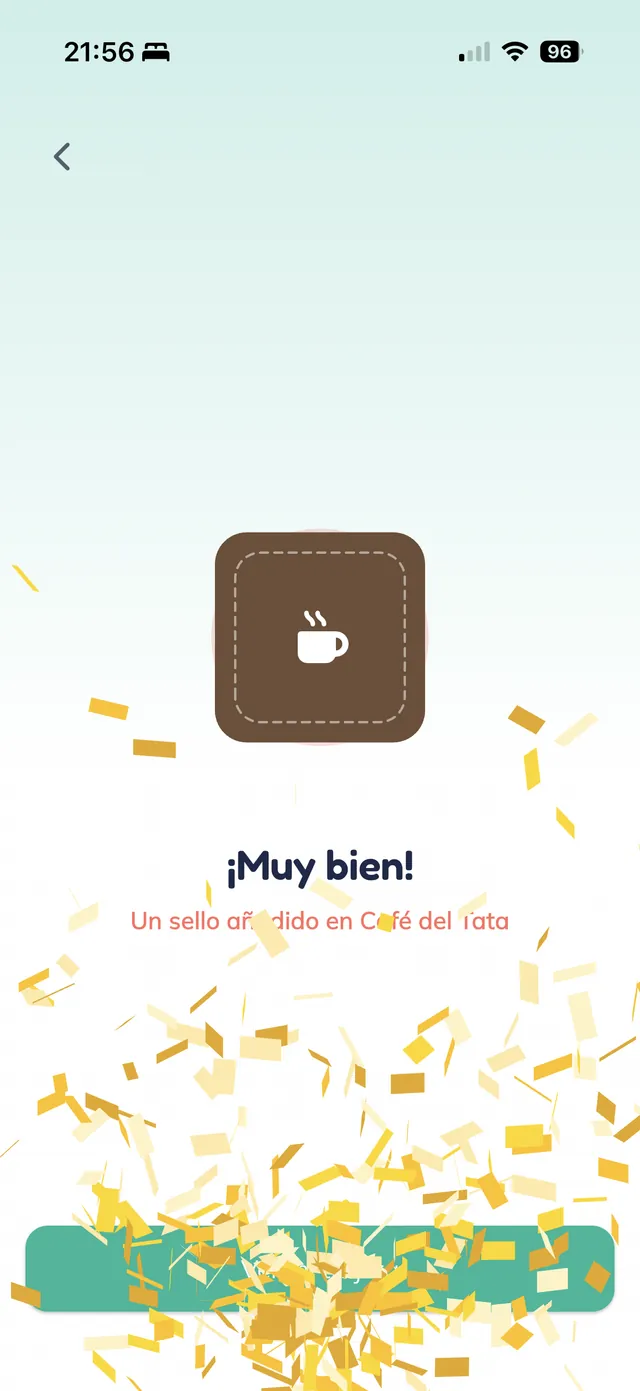
The last stamp completes the card
On your customer’s phone. The customer collects their last stamp (here with the physical Stampi sello) and, because that stamp completes the card, the celebration lands with golden confetti over the message "¡Muy bien! Un sello añadido en Café del Tata" (nice, a stamp added at Café del Tata). Golden confetti is the signal that the reward is ready.
Note: An ordinary stamp lands with color confetti; only the stamp that completes the card lands with golden confetti. That is how you tell the redeem moment apart from a regular stamp.
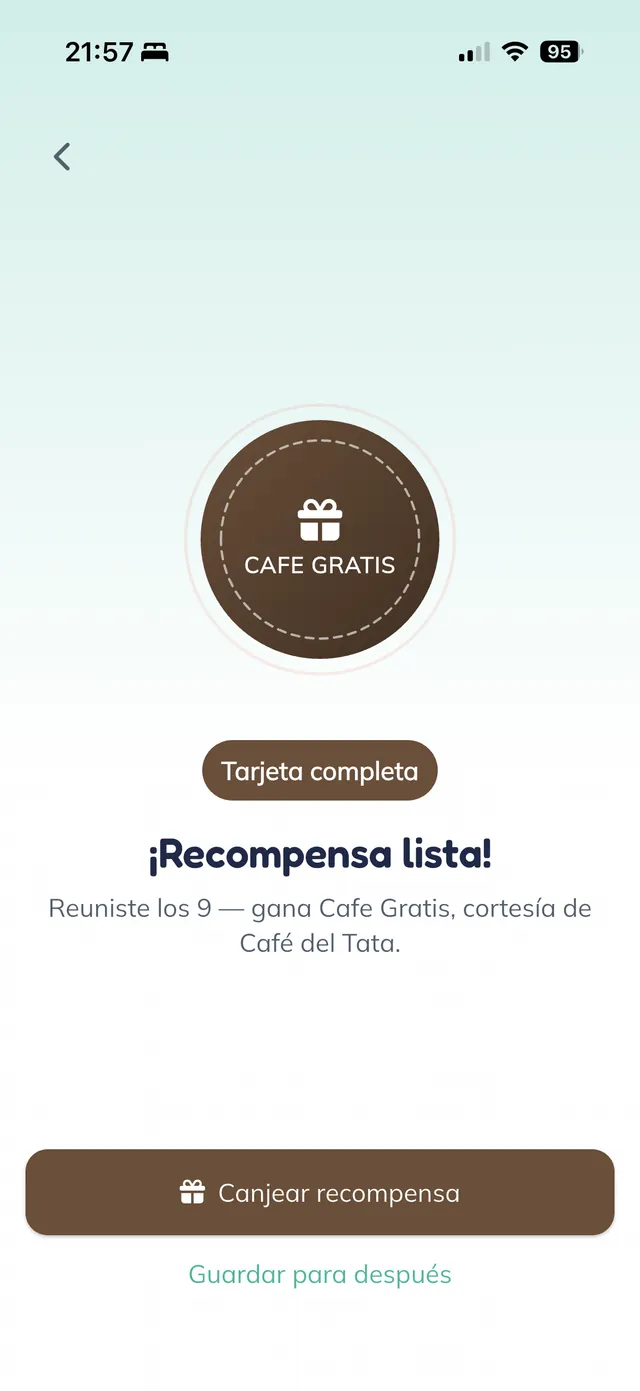
The reward is ready
The customer then sees the "¡Recompensa lista!" (reward ready) screen with their prize ("Reuniste los 9 — gana Cafe Gratis", you collected all 9 — you earn a Free Coffee) and two buttons: "Canjear recompensa" (redeem reward) to claim now, or "Guardar para después" (save for later) to redeem on another visit.
Note: The reward does not expire on its own. The customer can save it and redeem when they come back.
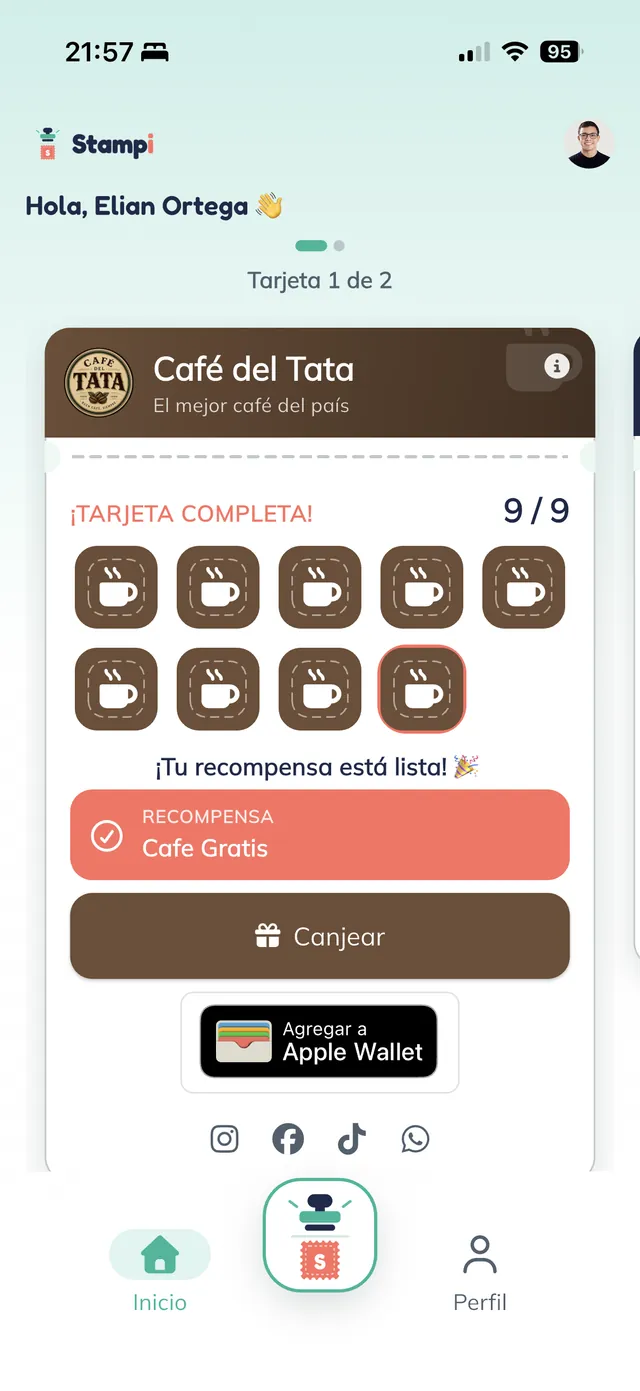
The completed card waits in view
If the customer chose "Guardar para después" (save for later), their card sits on the home screen badged "¡TARJETA COMPLETA! 9/9" (card complete), all nine cups stamped, with the "Canjear" (redeem) button always in reach. They can claim their reward the next time they visit.
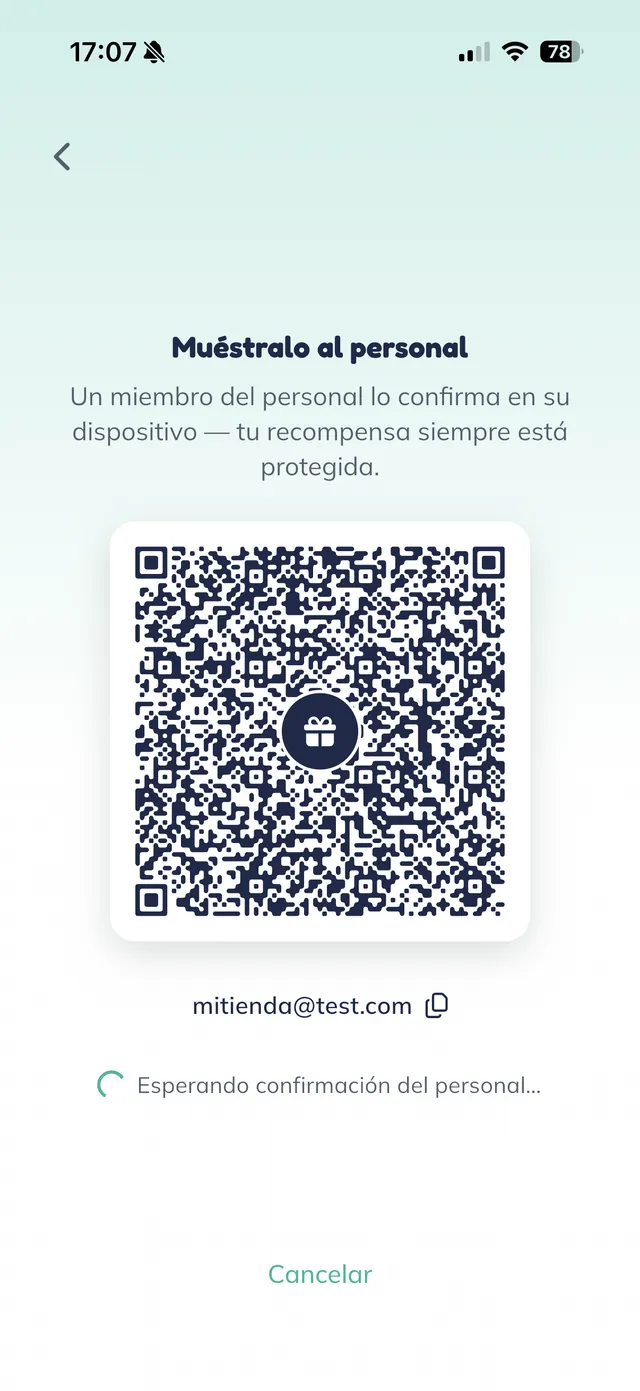
The customer shows their redeem code
When the customer wants their reward, they tap "Canjear recompensa" (redeem reward) and the app shows a code on the "Muéstralo al personal" (show this to the staff) screen, noting that a staff member confirms it on their device. The customer shows it to you, and their app waits, "Esperando confirmación del personal" (waiting for staff confirmation).
Tip: This is the customer’s own code. In the next step you scan it from your admin phone to open the redemption.
You scan the customer’s code
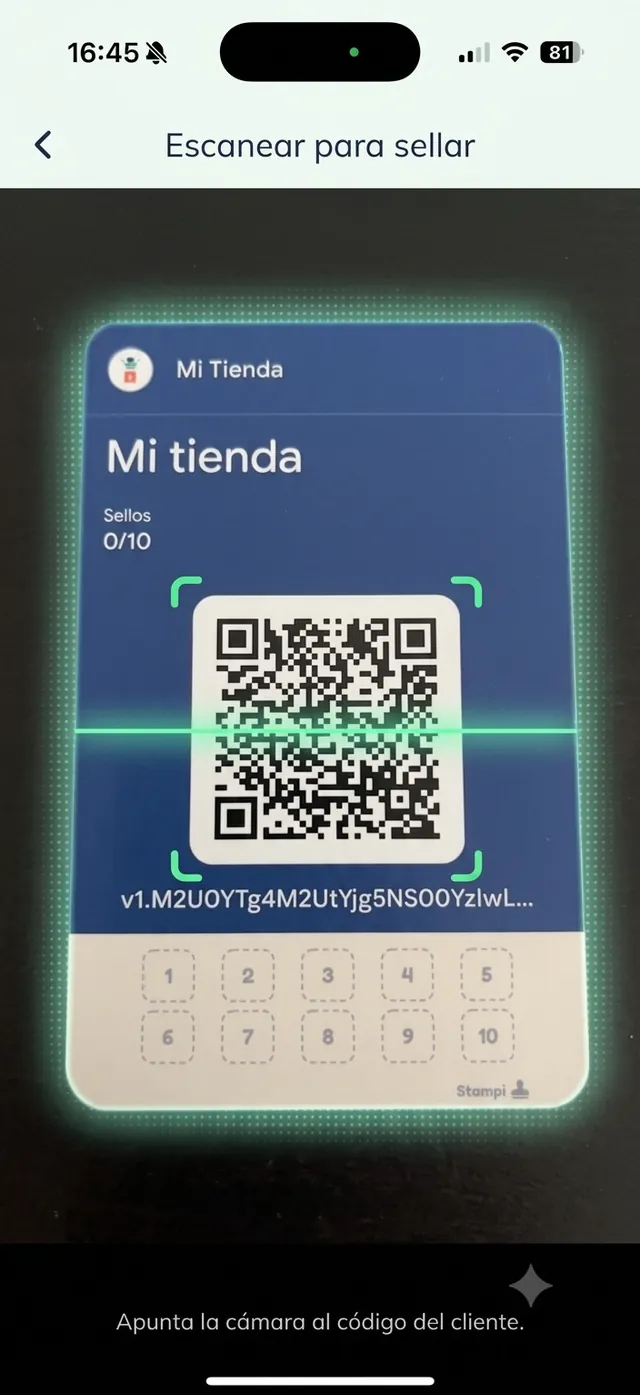
On your admin phone, open the scanner ("Escanear para sellar", scan to stamp) and "Apunta la cámara al código del cliente" (point the camera at the customer’s code). Once it reads, Stampi recognizes the card is complete and offers to redeem this customer’s reward.
Confirm the redemption
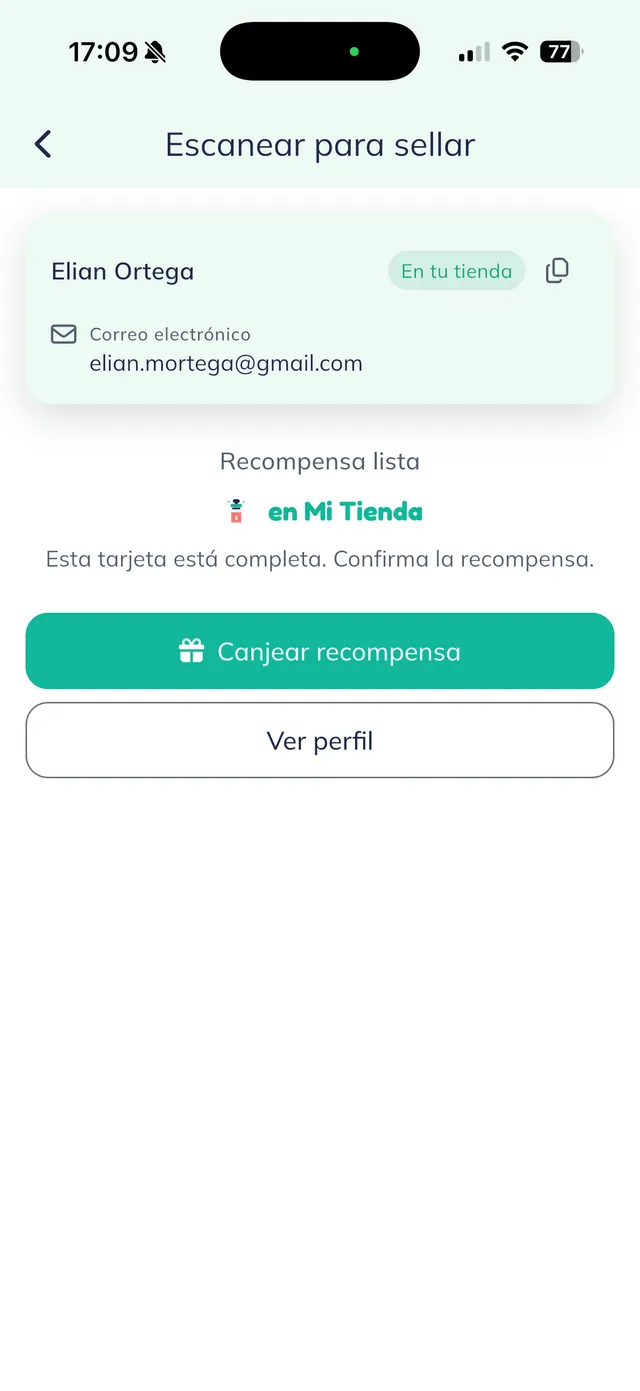
Once it reads the code, Stampi shows the customer’s details and confirms that "Esta tarjeta está completa" (this card is complete). Tap "Canjear recompensa" (redeem reward) to hand over the prize.
Warning: A canje cannot be undone. Confirm only when you are actually handing your customer their reward.
The redemption is confirmed
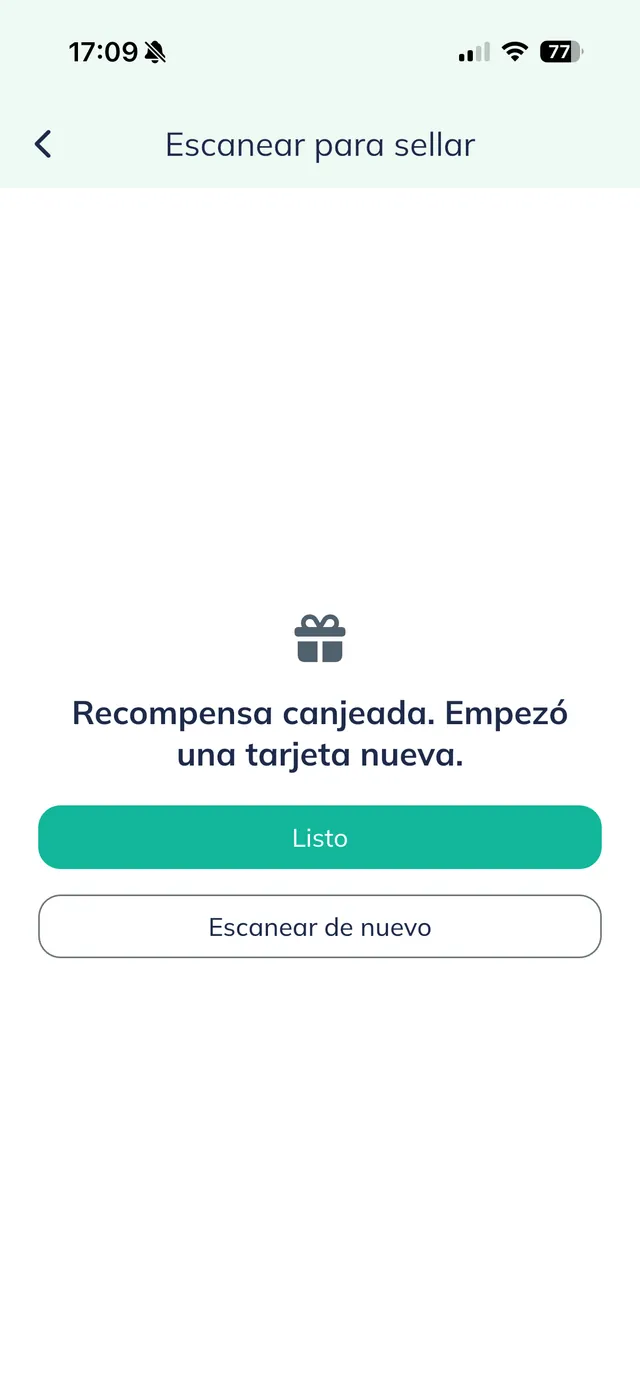
Stampi confirms the handover: "Recompensa canjeada. Empezó una tarjeta nueva." (reward redeemed, a new card started). Tap "Listo" (done) to finish, or "Escanear de nuevo" (scan again) to serve another customer.
Note: You can also redeem without scanning: open the customer’s record (search by email) and, if their card is complete, confirm the redemption there. Handy when the customer does not have their phone with them.
The customer gets their reward with a final golden confetti
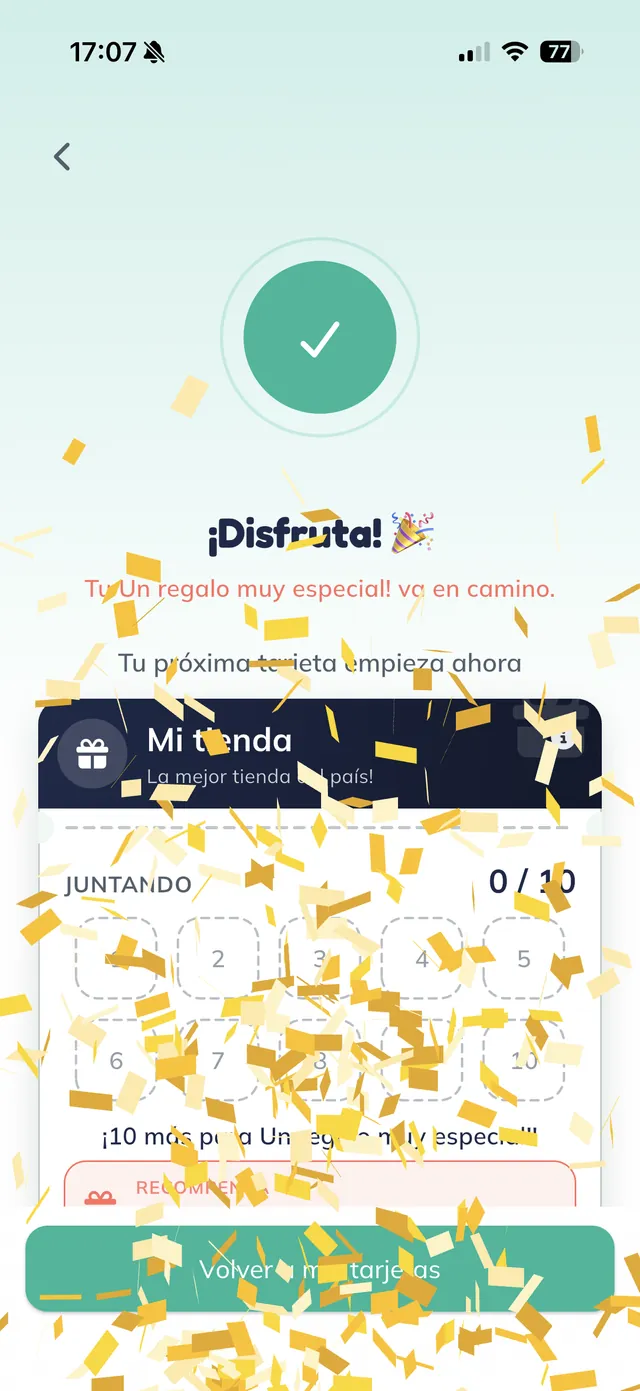
The moment you confirm, the customer’s phone celebrates with golden confetti: "¡Disfruta!" (enjoy), their reward is on its way and their next card starts now. They tap "Volver a mis tarjetas" (back to my cards) to continue.
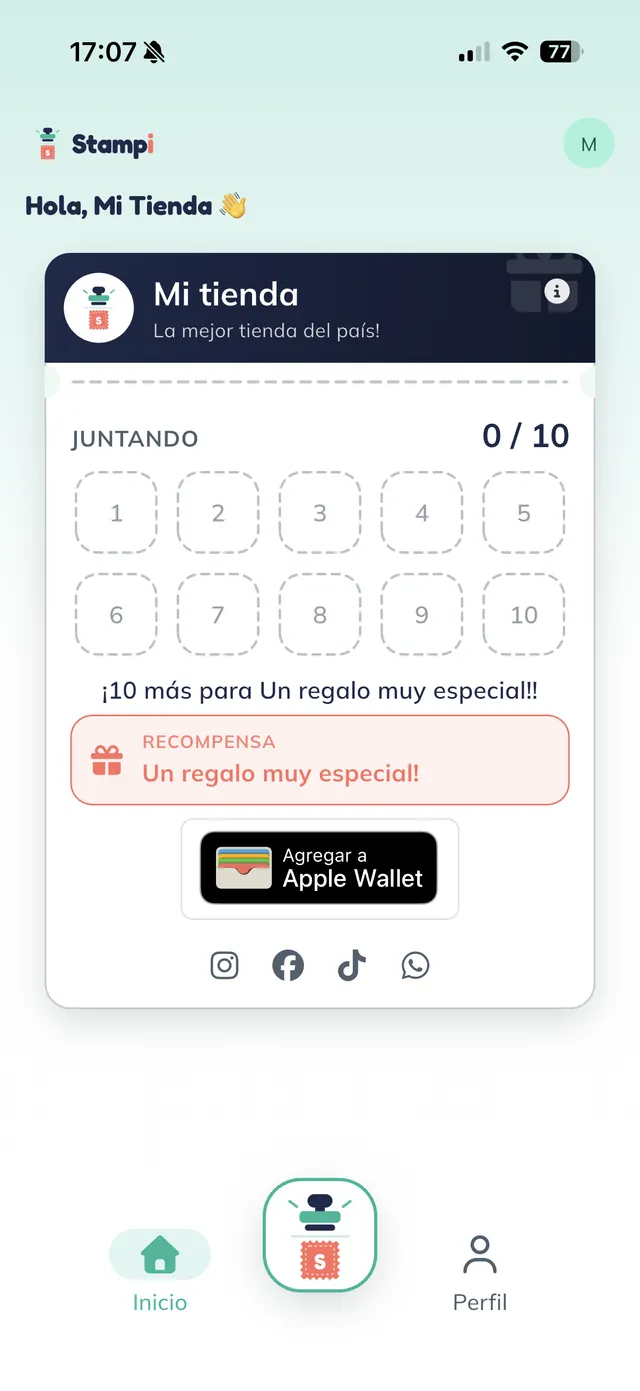
The card starts over
If your business has "Renovación automática" (auto-renew) on, the customer’s card starts a new cycle from zero (0/10 in this example) and they can collect stamps again, just like at the start. If it is off, the card stays closed after the reward.
Note: Most shops keep auto-renew on so the customer keeps collecting stamps. You can change this option any time from your business settings.