
Tutorials
Stamp with your Stampi keychain
The customer opens their collect screen and you tap the keychain to their phone: the stamp is recorded.
This tutorial walks the physical Stampi keychain stamp on iPhone: the customer opens their collect screen, you tap the keychain to the phone, and the stamp is recorded on their card. No QR code, no camera, just the keychain against the phone.
Watch the videoOn video
Watch the full walkthrough on video
Prefer to watch before following the steps? This video walks the whole process from start to finish (narrated in Spanish); the step-by-step below mirrors it in English with the same screens.
Before you start
Three things make this flow work:
The keychain comes in your welcome kit
Your kit includes a physical Stampi keychain or tag (the navy "S" sello). Holding it against a phone that has the collect screen open gives that customer one stamp. There is nothing to scan: no QR code, no camera, no separate reader — just the keychain against the phone.
On iPhone a scan sheet appears
On iPhone, the customer screen shows "Listo para sellar" (ready to stamp) with "Toca para empezar a escanear" (tap to start scanning); tapping it opens the system sheet "Listo para escanear" (ready to scan) and the phone waits for the keychain. If that sheet closes, the screen returns to "Toca para empezar a escanear": tap the big sello button again to re-arm it.
You can test it yourself
To try it, switch your account from the business to your personal profile, open the collect screen, arm it, and tap the keychain to your own phone: the stamp collects the same way it does for a customer.
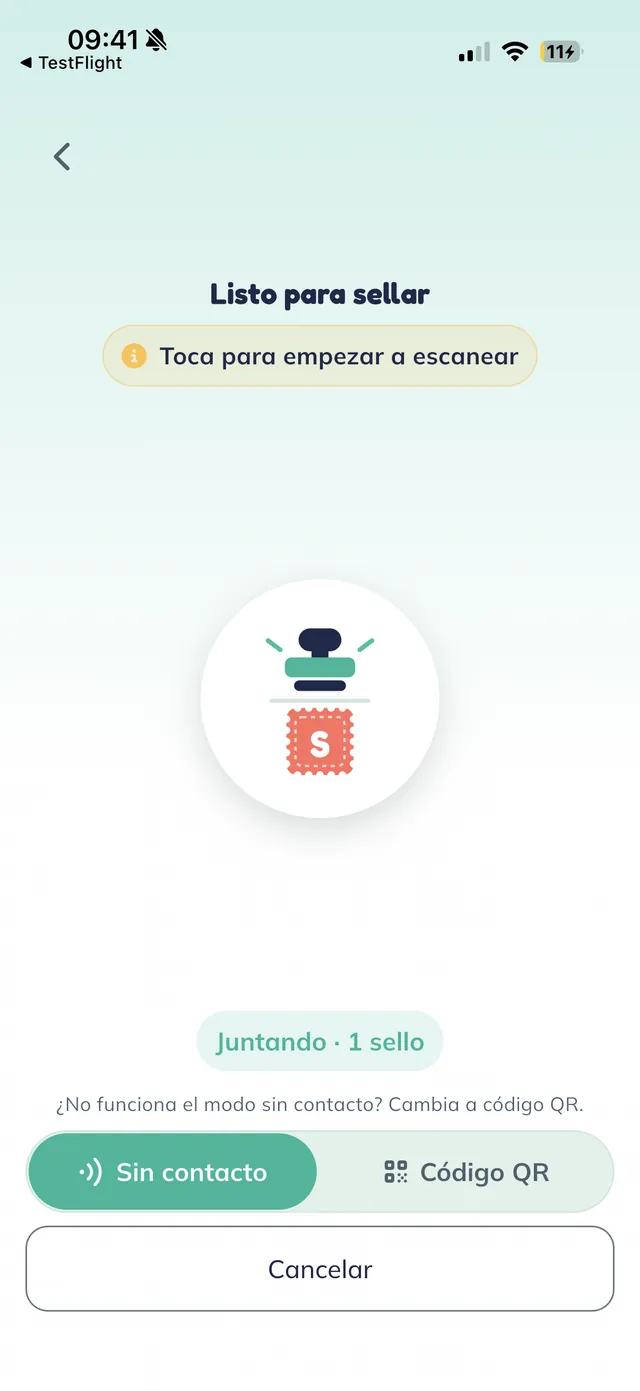
The customer opens the collect screen
On the customer phone, the central Stampi button opens "Listo para sellar" (ready to stamp), with the hint "Toca para empezar a escanear" (tap to start scanning), the "Sin contacto" / "Código QR" (contactless / QR code) toggle, and, below, "Juntando · 1 sello" (collecting · 1 stamp). This is the screen the keychain talks to.
Note: Leave the toggle on "Sin contacto" (contactless): that is the tap-the-keychain mode. "Código QR" (QR code) is the fallback for phones that cannot tap.
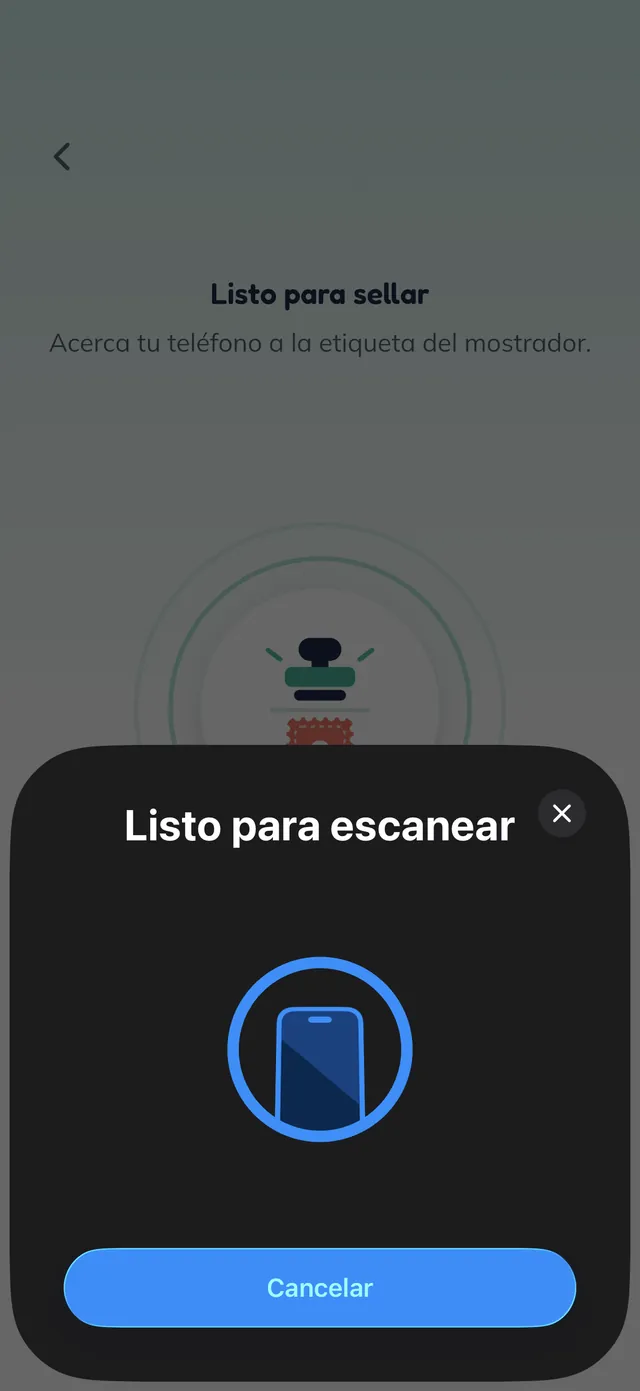
Tap the keychain to the phone
Tapping the sello arms iPhone: the "Listo para escanear" (ready to scan) sheet slides up over "Acerca tu teléfono a la etiqueta del mostrador" (bring your phone to the counter tag), with a "Cancelar" (cancel) button. You hold the physical Stampi keychain against the customer phone and the phone reads it.
Note: If the "Listo para escanear" sheet closes with "Cancelar", the screen returns to "Toca para empezar a escanear" (tap to start scanning): tap the big sello button again to re-arm it, then tap the keychain again.
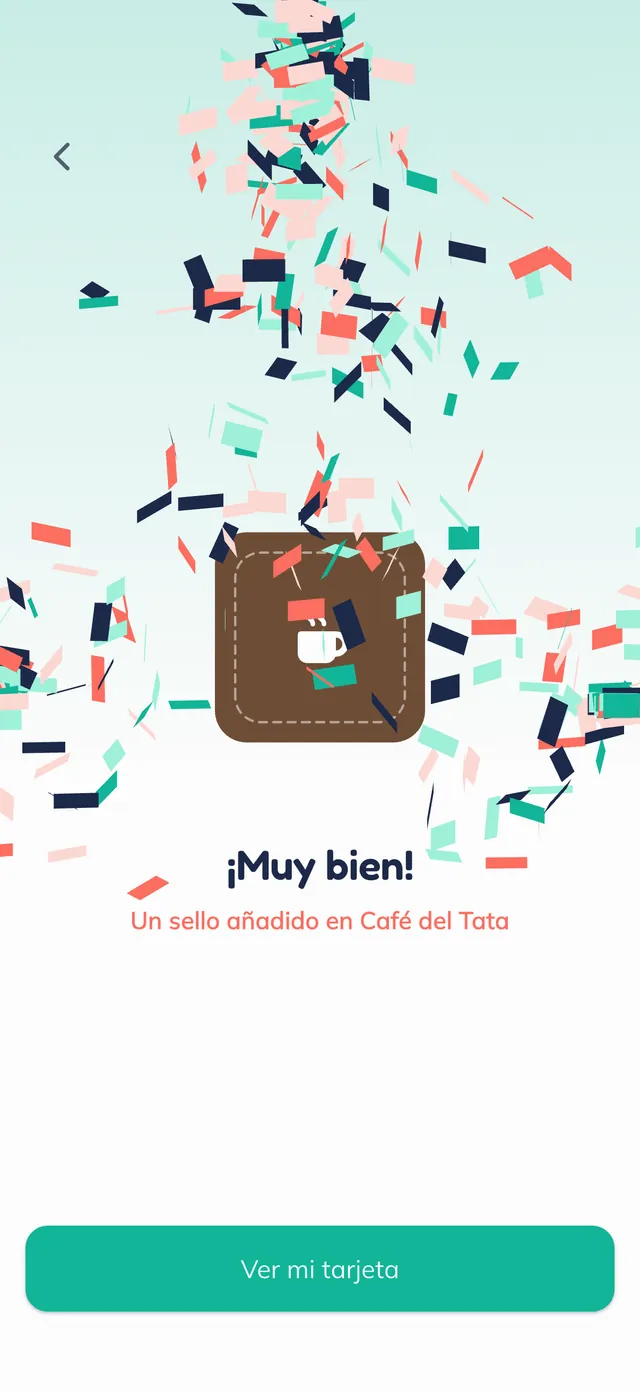
The stamp is recorded
The phone reads the keychain and grants the stamp: a confetti screen reads "¡Muy bien!" (nicely done) and "Un sello añadido en Café del Tata" (one stamp added at Café del Tata), with the "Ver mi tarjeta" (see my card) button. This is the customer phone celebrating their stamp.
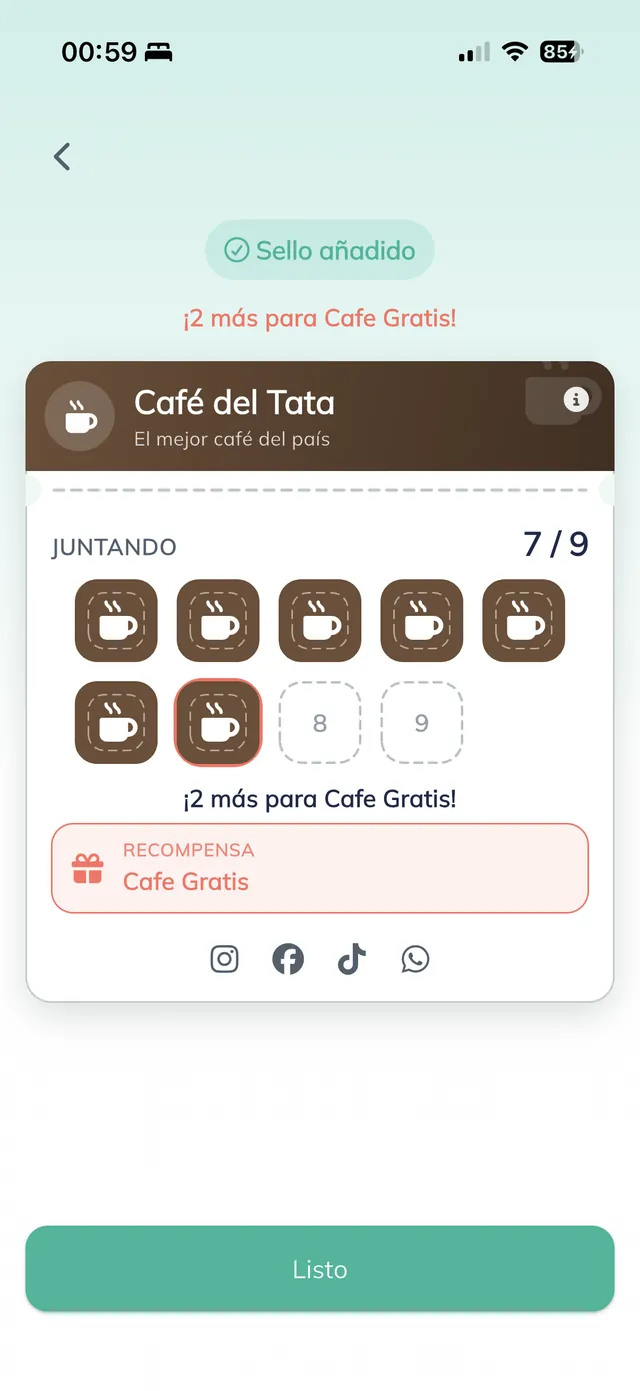
The card updates
The card shows the green "Sello añadido" (stamp added) badge and "¡2 más para Cafe Gratis!" (2 more for a free coffee) over the Café del Tata card, now at "JUNTANDO 7 / 9" (collecting 7 of 9), with the "Cafe Gratis" (free coffee) reward. From now on the customer will always see this card on their home screen.
Confirm the stamp from your side
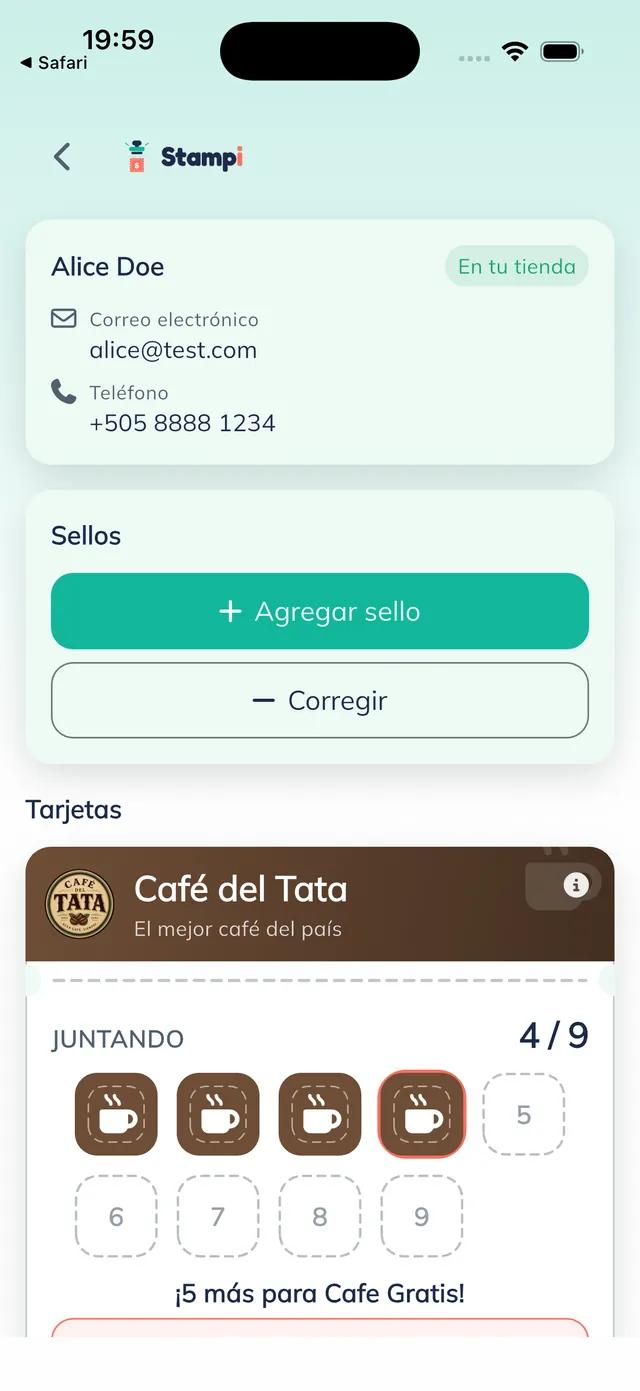
On your phone, open the customer from "Buscar cliente" (find customer) to see their record: the "En tu tienda" (at your shop) badge, their email and phone, a "Sellos" (stamps) block with "+ Agregar sello" (add stamp) and "− Corregir" (correct), and their Café del Tata card. Here you confirm the stamp was recorded; and, if you ever need to, you can add or correct a stamp by hand.
Tip: When no keychain is at hand, from this record you can give the stamp yourself with "+ Agregar sello" (add stamp). It is the same stamp, applied from your phone.